
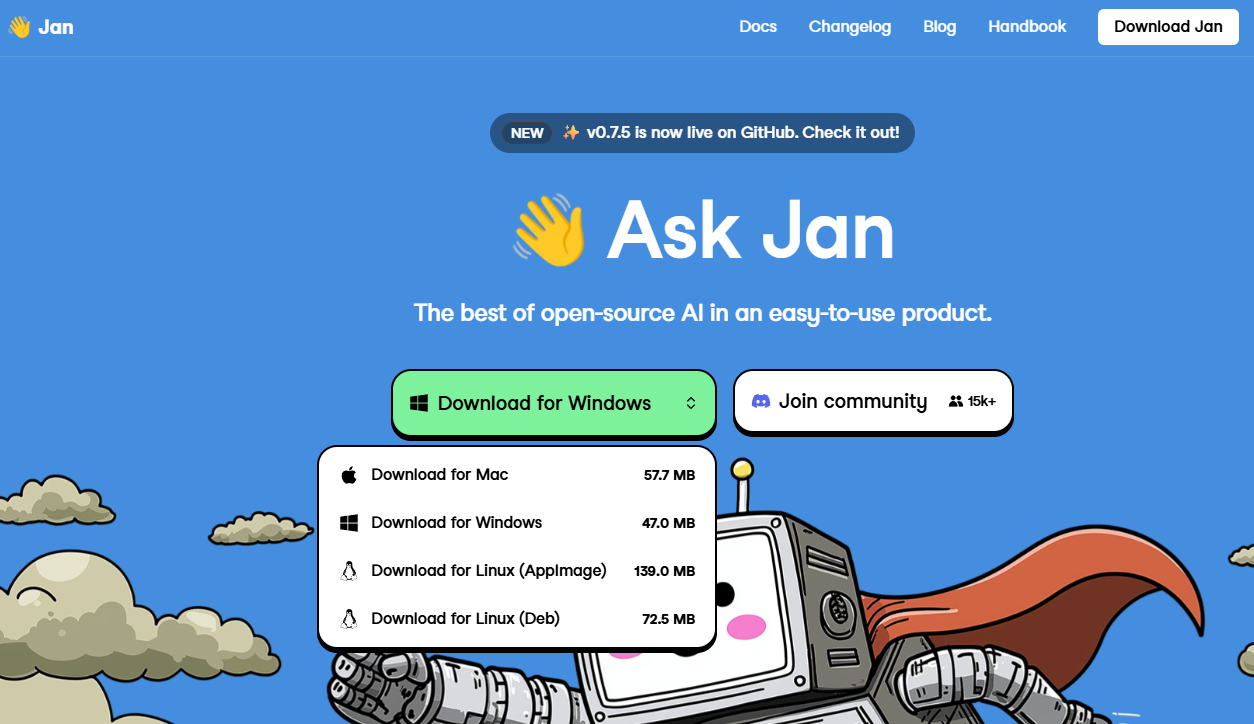
I’ve been experimenting with local models for a while now and recently tried Jan AI. I liked the idea of running powerful AI directly on my computer, without internet access. This gives me control over my data and freedom of customization. I’ll explain what it is and why it might be useful later.
Jan AI: What It Is and Why Use a Local AI Without the Internet
For me, Jan AI is a tool that turns a local machine into a small AI platform. It usually provides an OpenAI API-compatible interface. This means that many applications and scripts that are used to working with the cloud can be redirected to a local server without major modifications. I see the point in this when I don’t want to send confidential data to the cloud. It is also useful in places with poor internet or when you need a deterministic response without external model updates.
Why use it locally? I will list the main reasons that personally played a role for me:
- Confidentiality: the data stays with me.
- Predictability: the model’s behavior is stable until I update it.
- Integration with local data: quickly search through your own archives and databases.
- Saving on cloud requests with frequent use.
At the same time, Jan AI often serves as a bridge between the models you download and the applications that use them. This is convenient when you want to quickly prototype an assistant or automation without being tied to external providers.
Advantages and limitations of Jan AI when working without the Internet
I’ll tell you right away about the pros and cons, because it’s important to understand the compromises. Local AI gives freedom, but requires resources and security care.
| Advantages | Limitations |
|---|---|
| Full control over data and configuration | Need CPU/GPU and enough space for models |
| No dependence on the external internet | No automatic updates to the model’s knowledge |
| Possibility of customization and integration with local systems | Requires administration and backup |
This habit helped me: first assess the tasks and only then transfer them offline. If the task is text generation and working with a local database, the local mode is ideal. If you need the latest world information, cloud services still win.
Tip: if the relevance of knowledge is important, combine the local model with periodic data updates from secure sources.
I will also note the technical limitations. Large models need a good video card and a lot of RAM. On weak machines, you will have to use smaller or quantized versions of the model. In other cases, you will encounter delays during inference and possible incompatibilities with old applications.
How to use Jan AI offline: first launch and basic scenarios
I usually start with preparation. If you are wondering how to use Jan AI, the procedure is as follows: prepare the system, load the model, start the server and connect via the API. It’s all simple if you break it down into steps.
- I check the system requirements and free up space for the model.
- I download the required model and deploy it in a separate folder.
- I launch the Jan AI server and check the health endpoint.
- I connect via curl or a familiar library, change the endpoint to local.
Typical scenarios that I use:
| Scenario | Example |
|---|---|
| Text generation | curl to local /v1/chat/completions |
| Local assistant | Integration with GUI or CLI, reading local files |
| Knowledge base search | Vector indexes and requests to the model for ranking |
Direct life hack: use a reduced model for a quick test. This way you can check the integration without a long wait and a large expenditure of resources.
In general, how to use it is up to you. I prefer to start with simple tasks. Then I add automation and integrations. This approach saves time and nerves.
System requirements and hardware preparation
I always start by checking the hardware. Jan is a local AI. He loves fast drives and a lot of RAM. An ordinary laptop is suitable for basic models. For serious work with large models, you need a GPU. Below I have described the guidelines to make it easier for you to navigate.
| Component | Minimum | Recommended |
|---|---|---|
| CPU | 4 cores | 6+ cores, modern instructions (AVX/AVX2) |
| RAM | 8 GB | 32+ GB |
| GPU (if needed) | not required | NVIDIA 8GB+ or equivalent with CUDA/ROCm support |
| Disk | 20 GB free | SSD, 100+ GB (models and cache) |
| OS | Linux/macOS/Windows 10+ | Linux (Ubuntu) for maximum flexibility |
Before installation, check the GPU drivers. On Linux, these are NVIDIA drivers and CUDA or ROCm for AMD. On macOS, make sure Homebrew is installed. On Windows, WSL2 and CUDA drivers are useful. I also recommend allocating a separate disk or partition for models. They take up space quickly.
Tip: Update your system and install Python 3.10+. This saves time when installing dependencies.
Step-by-step installation and launch (Linux, macOS, Windows, Docker)
I will describe a simple sequence for each platform. Follow the steps and check the output of the commands. If it stops somewhere, go back to the previous step.
Linux (Ubuntu)
- Обнови систему:
sudo apt update && sudo apt upgrade -y
- Установи зависимости:
sudo apt install -y python3 python3-venv python3-pip git build-essential
- Configure GPU drivers (if NVIDIA is available):
sudo apt install -y nvidia-driver-### cuda-toolkit-###
- Clone Jan and create a virtual environment:
git clone https://github.com/.../jan.git
cd jan
python3 -m venv venv
source venv/bin/activate
pip install -r requirements.txt - Start the local server:
python run_server.py --port 8080
macOS
- Install Homebrew, if you don’t have it:
/bin/bash -c "$(curl -fsSL https://raw.githubusercontent.com/Homebrew/install/HEAD/install.sh)"
- Install Python and Git:
brew install python git
- Next, as on Linux: clone the project, create a venv and install dependencies.
- On Apple Silicon, check the compatibility of models and the binaries used.
Windows (WSL2 is preferred)
- Enable WSL2 and install Ubuntu from the Microsoft Store.
- Follow the instructions for Linux inside WSL.
- If you are running natively in Windows, install Python and Git, then follow the same steps in CMD/PowerShell.
Docker
Docker is convenient for isolation and rapid deployment. I usually do this:
- Install Docker and Docker Compose.
- Create a docker-compose.yml file or use a ready-made one from the Jan repository.
- Run:
docker-compose up -d --build
- Check the logs:
docker-compose logs -f
Docker is useful if you want the same environment on different machines. The downside is that you need resources and GPU passthrough settings.
How to use: working with the OpenAI-compatible local API
I’m talking in simple terms. Jan provides an API similar to OpenAI. This is convenient. You save the usual scripts. Only the address and keys change.
A typical basic curl request looks like this:
curl http://localhost:8080/v1/chat/completions
 -H "Authorization: Bearer local-secret"
 -H "Content-Type: application/json"
 -d '{"model":"gpt-j","messages":[{"role":"user","content":"Привет, как дела?"}]}'
In Python, it’s even easier:
import requests
resp = requests.post(
 "http://localhost:8080/v1/chat/completions",
 headers={"Authorization":"Bearer local-secret"},
 json={"model":"gpt-j","messages":[{"role":"user","content":"Привет"}]}
)
print(resp.json())
Usage tips:
- Store the key in an environment variable: JAN_API_KEY. Don’t write it in the code.
- Check availability: GET /v1/models will return a list of available models.
- For streaming, use SSE or WebSocket, if Jan supports it.
- Limit simultaneous requests. A local machine is easily overloaded.
Example: set timeouts and retries in the code. This will save you from freezes during long inference.
To integrate with existing code, it is enough to change the URL and key. The remaining parts of the request remain compatible with OpenAI. I always test with a simple request first, then add prompts and logic.
Selecting, downloading, and managing models for Jan AI
I approach the choice of a model pragmatically. First, I decide what is more important to me: speed or quality. Small models work quickly and do not require a lot of memory. Large ones give more accurate answers, but are slower and take up space. I look at the model format: ggml, FP16, GPTQ — this depends on how to run it locally. I only download from trusted sources: official repositories, Hugging Face, or verified forks. I always check the size and checksum of the file before installation.
| Model type | Pros | Cons |
|---|---|---|
| Small (LLaMA-7B and similar) | Fast, few resources | Less accuracy |
| Medium (13B—30B) | Balance of speed and quality | Require more memory |
| Large (70B+) | Best quality | Need GPU/lots of RAM |
Before downloading, I check the free space and disk bandwidth. I always store metadata next to the model: version, source, and date of download. This helps to manage multiple models and quickly switch between them.
Tip: Name model files according to the template model-name_version_quant.bin. This makes it easier to automate updates and rollback.
Quantization, optimization, and acceleration of inference
Quantization reduces the size of the model and accelerates inference. I often use 4-bit and 8-bit quantization, depending on the task. 8-bit gives a good balance of speed and quality. 4-bit reduces memory more, but sometimes spoils accuracy. For quantization, I use tools like GPTQ or libraries built into the Jan AI/llama.cpp ecosystem.
| Quantization | Memory | Quality |
|---|---|---|
| FP16 | Average | High |
| 8-bit | Low | Good |
| 4-bit | Very low | Average |
Optimizations that I apply: I enable multithreading, select the number of threads according to the CPU cores, use mmap to load models, and disable unnecessary loggers. On the CPU, I look for the presence of AVX/AVX2/AVX512 instructions — this speeds up matrix operations. On the GPU, it is important to choose a compatible driver and a CUDA-compatible build. I test the speed with different batch and context size parameters to find the best compromise.
Updating, replacing, and backing up models
I update models carefully. I never overwrite a working model in production. I create a separate folder for the new version and run tests locally. I compare checksums and results on control prompts. If everything is OK, I switch via a symbolic link or move to the place where Jan AI expects it. The main steps I take: – I save the current model to an archive with the date. – I load the new model into the test folder. – I run a quick test on a set of prompts. – If the results are acceptable, I change the link to the model. I store backups both locally and outside the machine — on a NAS or in cloud storage. I set up automatic backups once a week and check the integrity of the archive. For critical systems, I use versioning and a change log so that I can quickly roll back to the previous version.
Configuring personal assistants and prompt design (how to use for tasks)
I like to make personal assistants for specific tasks. First, I set a system message: role, tone, and limitations. Then I add prompt templates for recurring tasks. This results in stable behavior. I often create several profiles: “resume”, “coder”, “writing assistant”. I switch the profile depending on the task. List of key principles that I use: – I clearly indicate the role and format of the response. – I divide the task into steps and give an example of the expected result. – I limit the length and style, if necessary. – I try different temperatures and max_tokens to balance creativity and accuracy. Example of a simple prompt template:
Role: documentation expert. Task: reduce the text to 30% without losing meaning. Output: bulleted list, 5—7 points.
For complex scenarios, I build prompt chains. The first prompt analyzes the data. The second generates a draft. The third does a quality check. In Jan AI, this is configured as a sequence of requests to the local API. This is how I achieve reliability and predictability. For automation, I often save templates in YAML or JSON so that I can quickly substitute variables and run them from a script.
Creating prompt chains and tooling
I usually build prompt chains as a set of small steps. Each step solves a simple task. Then I connect them in a sequence. This is easier to debug. This is easier to improve.
A typical chain looks like this: getting context, searching the knowledge base, generating a draft, checking facts, formatting the output. I use minimal prompts for each step. This way the model doesn’t lose focus. If something goes wrong, I only change one step.
Here are the main patterns that I apply:
- Retriever + generator: first similar documents, then RAG generation.
- Separation of roles: one prompt acts as an “expert”, the other as an “editor”.
- Quality control: a separate prompt for checking facts and style.
- Functional calls: prompts call local utilities (reading a file, searching a vector index).
I group the tools into a table. This shows what is responsible for what.
| Tool | Purpose | Why locally |
|---|---|---|
| Retriever (FAISS/Chroma) | Search for relevant passages | Fast delivery, privacy |
| Prompt template engine | Manages variables in the prompt | Simplifies testing |
| Fact checker | Compares output with local DB | Avoiding fabrications |
| File adapters | Read local documents | Working without the internet |
Tip: Keep prompts short and document the inputs/outputs of each step. This saves a lot of time when debugging.
I always test the chain on simple scenarios. Then I make it more complicated. Many problems go away in early tests. For repeatability, I save prompts and model versions. This way you can roll back if the result has deteriorated.
Integrations and automation: examples of using Jan AI without the Internet
I connect Jan AI to local services. This creates useful automations. The examples are simple, clear and real. They work offline and protect data.
Here are common scenarios:
- Documentation assistant who answers team questions by reading internal files.
- Automatic creation of reports from logs and CSV.
- Integration with local CRM for preparing email templates.
- Autonomous analytical pipelines: extraction, summarization, notification.
Integration with local knowledge bases and vector indexes
I store knowledge locally. Most often it is a set of documents, PDF and a database. First, I break the documents into pieces. Then I generate embeddings with a local model. I save these embeddings in a vector index.
I use FAISS or Chroma. Both work offline. FAISS is good for speed. Chroma is easier to integrate. For large projects, I take Milvus or local Weaviate.
The process is usually like this:
- Loading documents and normalizing them.
- Chunking: splitting into logical passages.
- Generating embeddings locally.
- Indexing in FAISS/Chroma.
- When requesting — searching for similar passages and adding to the prompt.
Below is a brief table with the pros and cons of indexes.
| Index | Pros | Cons |
|---|---|---|
| FAISS | Very fast, compact | Less convenience for metadata |
| Chroma | Simple API, metadata storage | May be slower on large volumes |
| Milvus/Weaviate | Scalability, interfaces | More difficult to set up locally |
Important: Generate embeddings with the same model you use for searching, otherwise the similarity will be poor.
Workflow automation: scripts, cron, webhooks, and triggers
I automate routine tasks with simple scripts. Most often, it’s Python or Bash. The scripts call the local jan ai API. Then the data is processed and saved.
Trigger methods:
- cron/systemd timers — for regular tasks: reports, backups, indexing.
- inotify/file watchers — react to the appearance of new files.
- local webhooks — services in the LAN can send notifications to jan ai.
- script chains — one script starts another based on the result.
Example scenario: a script scans a folder with logs once an hour, extracts key events, sends them to jan ai for summarization, and then puts the result in a report folder. Everything works without the internet. You can add sending a notification to a messenger inside the local network.
Below is a table of triggers and typical tasks.
| Trigger | Task |
|---|---|
| cron | Daily summaries, indexing new documents |
| inotify | Processing uploaded files, automatic generation of metadata |
| local webhook | Reaction to actions in other LAN systems |
| systemd | Long-lived daemons and observers |
I often check logs and keep a simple alert system. This saves me from silent failures and helps me react in time.
If needed, I can send script templates and examples of cron/systemd configurations. I have already tested them in several projects.
Security, access control, and data privacy
I believe that local AI is not only autonomy. It is also a chance to take control of your data. When jan ai works on your network, I rely on a few simple principles. The first is minimum rights for services. The second is the separation of networks and services. The third is auditing and event logging.
I almost always divide the environment into zones. The model and data live in an isolated subnet. User interfaces are in another. Admin panels are in a third. This is how I reduce the risks of compromise. I also recommend setting up a role-based access model. Roles are needed: admin, operator, user. Each role has its own rights.
| Direction | What I do | Why this is important |
|---|---|---|
| Network segmentation | I isolate models from the external network | Fewer entry points for attacks |
| Access control | RBAC and separate service accounts | Minimizing rights = fewer risks |
| Logging and auditing | I store logs separately and check them regularly | Allows you to quickly detect anomalies |
Below is a short list of practices that I apply immediately when deploying jan ai:
- I disable unnecessary services and ports.
- I use separate accounts to run services.
- I enable audit of access to models and data.
- I store backups separately and encrypt them.
Confidentiality is not one action. It’s a set of small decisions that together produce a result.
Encryption, secrets, and secure data storage locally
Encryption is my first line of defense for data and keys. I always put the disk or volume with models encrypted. This helps if the equipment is stolen or lost.
For secrets, I prefer a key manager. You can use HashiCorp Vault, gpg, or system keyring. I never store keys in code. If docker is used, I forward secrets through secure variables or orchestrator secrets.
| Element | Recommendation |
|---|---|
| Disks and volumes | Full encryption (LUKS/BitLocker) |
| Secrets | Secret manager (Vault / gnome-keyring / pass) |
| Data transfer | TLS even inside the local network |
I also configure key rotation and regular integrity checks. I store backup copies of keys in a separate physical storage. If you want a simple option, encrypt the model files and store the key on a USB drive in a safe.
Testing, debugging, and typical problems with offline work
Testing an offline system is important. I check not only the serviceability of the service. I run failure scenarios. I simulate a power outage. I turn off the network. This reveals errors that ordinary testing will miss.
It is important to divide tests into levels. Unit tests for utilities and loaders. Integration tests for APIs and data streams. Load tests for performance evaluation. I monitor metrics: delays, memory and CPU usage, inference errors.
- Unit tests: I check parsing and processing of input data.
- Integration tests: I check the chain from request to model response.
- Load tests: I simulate peak scenarios and check for degradation.
I use simple tools: curl for manual checks, wrk or locust for load, Prometheus + Grafana for monitoring. I collect logs centrally. This helps to quickly find cause-and-effect relationships.
Frequent installation errors and their solutions
Over the years of installing jan ai, I have noticed a number of recurring problems. I wrote them down and now I solve them quickly.
| Problem | Symptom | Solution |
|---|---|---|
| Memory shortage | Processes crash when loading the model | Increase swap or use a quantized model |
| Incompatible GPU drivers | Errors during CUDA initialization | Check the versions of drivers and the CUDA/CuDNN library |
| File permission issues | Access denied when reading the model | Check the owner and permissions, use secure service accounts |
| Port is busy | Service does not start: address already in use | Find the process and stop it or change the port in the config |
Here are a few more quick tips that I give myself and colleagues:
- Check the logs immediately. They often say exactly what broke.
- Run the service in interactive mode when debugging.
- Make checkpoints: if something breaks after the update, quickly roll back.
Debugging is a conversation with the system. Listen to the errors, they will tell you the way to fix it.
Community, updates, and resources for developing skills with jan ai
I myself regularly visit the communities around jan ai. There I quickly learn about new releases, patches, and instructions. It is important to be aware, because local projects often develop through pull requests and third-party utilities. I subscribe to newsletters, read cases in trackers, and participate in discussions. This makes it easier to find ready-made solutions and avoid typical mistakes.
| Resource | What for | Update frequency |
|---|---|---|
| GitHub/repositories | Code, releases, issues | at the time of releases |
| Discord/Slack/Matrix | Quick questions and advice | constantly |
| Forums and Reddit | Discussion of scenarios and use cases | regularly |
| Documentation and wiki | Installation and examples | as updated |
I advise you to save bookmarks to several sources and include release notifications. I also keep a local copy of key documentation. This helps to work offline and quickly solve problems without the Internet.
Useful tools, templates, and repositories
I use a set of tools that saves time when setting up and operating jan ai. Some things really simplify life. Below I will list the ones I use most often.
- Tools for launching: docker containers, systemd scripts, ready-made images.
- Converters and runtimes: llama.cpp, ggml formats, utilities for converting from Hugging Face.
- Vector storage: FAISS, Chroma, Milvus for local vector indices.
- CLI and local API wrappers compatible with OpenAI API for uniform integration.
- Prompt and configuration templates for personal assistants and chats.
Below is an example of what a simple repository structure looks like, which I often clone and adapt:
config/ run.sh docker-compose.yml models/ prompts/ docs/README.md
If I need to speed up inference, I take ready-made quantization scripts and performance tests. Repositories with templates usually contain instructions for Linux, macOS, and Windows. Once I configured a template for cron jobs in an hour, and it worked stably without the Internet.
Real cases and ready-made scenarios for using jan ai without the Internet
I love real examples, because they help to understand where local AI is really useful. Below are my favorite scenarios that have already been tested in work and hobby projects.
- Personal offline assistant for notes, planning, and search queries for local documents.
- Embedded analytics in production for processing logs and warnings without sending data to the cloud.
- Medical protocols and reference systems in a clinic where confidentiality and offline access are important.
- Autonomous quantifiers and report generation on IoT devices with limited connectivity.
- Local content generation for sites and applications where full control over data is required.
| Scenario | Benefit | Necessary infrastructure |
|---|---|---|
| Offline document assistant | Confidentiality, fast search | Server 8+ GB RAM, vector index |
| Production monitoring | Reliability, no cloud dependency | Local agents, automation scripts |
| Medical reference | Compliance with privacy requirements | Fenced network, backups |
One of my projects is an offline assistant for engineers. He answered questions about drawings and documentation directly at the factory. No external calls. Result: accelerated information retrieval and fewer data leaks.
It is important to soberly assess expectations. Local models will not always replace the cloud in terms of generation quality. But they give control, security, and predictable latency.
Conclusion: how to make a decision about switching to jan ai offline
I approach the decision practically. First, I ask key questions. Do I need complete data privacy? Is work without the Internet required? What is the budget for equipment and support? The answers help to choose a strategy.
- Define requirements: security, availability, performance.
- Assess resources: are there servers, administration skills, a budget for models.
- Make a prototype: a simple task, a minimal stack, offline tests.
- Measure metrics: latency, response quality, hardware load.
- Make a decision: full offline, hybrid, or continue in the cloud.
I always advise starting with a prototype. This way you will see the real pros and cons. The community and ready-made repositories will help reduce the time to implement. If before installation you want to double-check the system requirements or see alternatives, check out our Jan AI card in the neural network catalog — there we have collected all the technical characteristics in a convenient format.